So, you want to do CFD! And OpenFoam is a great choice to start with because it is open-source software which means its free to use and its more transparent and we also have more control over it. But there is a catch it only works in Linux, but we can also install it in windows by making our own Linux compartment in our computer, i.e. Installing WSL, WSL is an acronym for Windows Subsystem for Linux it basically takes some of our computer’s resources and makes it a separate Linux system. So, let’s first download WSL.
For Installing WSL, just go to windows PowerShell or terminal, and type wsl --install
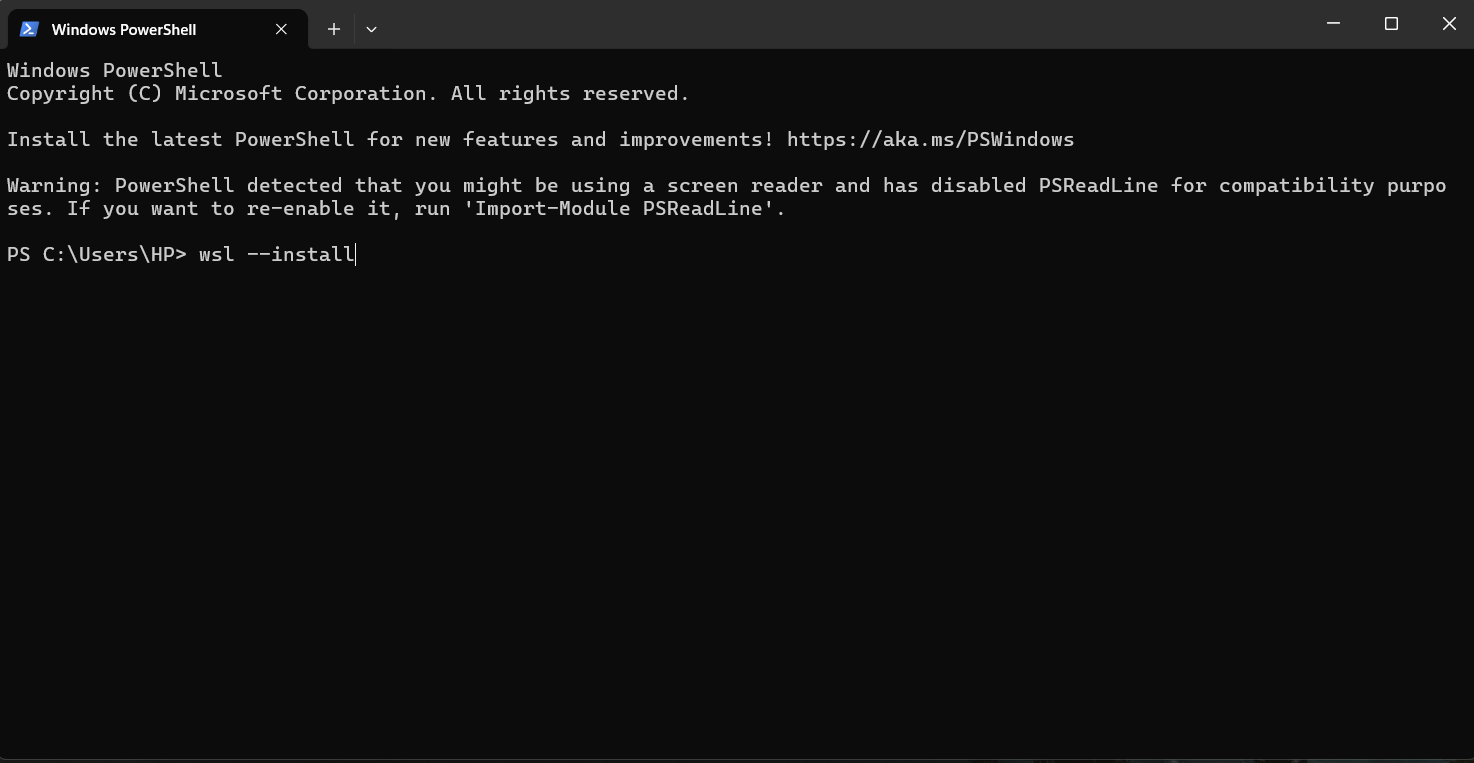
After running the command, it will automatically install the wsl and if you are using windows 11 you the ubuntu will automatically be downloaded but if isn’t then you can run the command wsl –-install ubuntu. And if this also does not work for you then you can also download the ubuntu from the Microsoft Store.
After installing the WSL and Ubuntu, you have to make your UNIX id, Ubuntu usernames must follow the regular expression ^[a-z] [-a-z0-9] *$. This means that usernames can only contain lowercase letters, underscores, dashes, and optionally, dollar signs. The first character of a username can only be lowercase. For example, "Reindeer" is not an acceptable username because it has a capital letter at the beginning.
After making your id you can install OpenFoam, for that just go to Openfoam.org then go to Install on Ubuntu. There you can see the various commands; you just need to copy paste them one by one. Here are the commands for version 11. Be aware that command may change overtime and these given may not work if you are reading this is far future. For that you can just directly go to the Openfoam.org and download with their commands.
sudo sh -c "wget -O - https://dl.openfoam.org/gpg.key > /etc/apt/trusted.gpg.d/openfoam.asc"
sudo add-apt-repository http://dl.openfoam.org/ubuntu
sudo apt-get update
sudo apt-get -y install openfoam11
With these four commands you can install the OpenFoam software version 11.
One more thing you need to do to use the Installed software which is just to add one line in the bashrc file, here how you will do it. Just go to ‘This PC’ or ‘My Computer’ whichever name you have, in that scroll the left bar to the bottom, there you will see Linux section and in that section you will see Ubuntu, just click on that and then go to Home then there will be a your username named folder click on that and there you will find one file named .bashrc you need to open that and scroll the bottom of the script that on the last just add the following line:
source /opt/openfoam11/etc/bashrc
you can check if your OpenFoam is working or not by running the command foamRun -help if it is working then congratulations, you have successfully installed the OpenFoam software.
You just need one more thing to do (this time I mean it) just run the following command it will make a folder in your home directory called run there your will make you CFD cases and collect the raw data.
mkdir -p $FOAM_RUN
you can check if everything is working correctly by running your first case. Don’t worry I will show you how you can run your first case. Just run the following commands:
cd $FOAM_RUN
the above command will open the run directory
cp -r $FOAM_TUTORIALS/incompressibleFluid/pitzDailySteady .
the above command will copy the pitzDailySteady case from tutorial cases in openfoam and will paste in your run directory.
cd pitzDailySteady
the above command will open the pitzDailySteady directory
blockMesh
It will create the mesh for the case
foamRun
It will the start the calculation as per the boundary conditions given the case
paraFoam
It will open the paraview and show the result (click on the apply button in the left then the upper middlish section you will find the timesteps go the last timestep and then choose the field that you want to see)
So, you have installed the software and ran cases on it, now you can read the more about cases in openfoam.org, you can also plenty of good tutorials on youtube I personally like the tutorials of Cyprien Rusu
Here are some useful Linux commands:
- cd: It’s the acronym for Change Directory and it changes directory
- pwd: Print working directory. It shows the full path of the current directory.
- mkdir: Make directory. It is used to create new directories.
- rm: Remove. It is used to delete files and directories.
- cp: Copy. It is used to copy files and directories.
- mv: Move. It is used to move or rename files and directories.
- cat: Concatenate and display files. It is used to display the contents of a file.
- grep: Global regular expression print. It is used to search for patterns in files.
- chmod: Change mode. It is used to change the permissions of files and directories.
- chown: Change owner. It is used to change the owner of files and directories.
- tar: Tape archive. It is used to create and manipulate archive files.
- df: Disk free. It displays the amount of disk space available on the file system.
- du: Disk usage. It shows the disk space used by files and directories.
- top: Display and update sorted information about processes.